

When you purchase through links on our site, we may earn an affiliate commission. Here's how it works. |
The folks at Terramaster were kind enough to send me a Terramaster F2-425 2-bay NAS enclosure to look at and give my thoughts on. I am a bit of a NAS nerd, and I have used a lot of different brands, but this is my first time with a Terramaster product.
Hardware Capabilities
The Terramaster F2-425 has an impressive feature set for an entry-level NAS enclosure.
Hardware wise, the unit comes with an Intel N5095 Quad Core processor and 4GB of DDR4 RAM. You can upgrade the unit to 16GB of RAM, but I didn't have any larger DDR 4 SO-DIMMs laying around. There is only a single memory slot, so you must replace the 4GB module to upgrade.
The Intel processor helps a lot if you're going to be using the NAS unit as a media server, which it is well equipped to do. Plex, Jellyfin and Emby are natively supported. The F2-425s hardware level 4K H.265 transcoding had no issue keeping up with my Emby testing. I don't use Plex or Jellyfin.
Networking Features
The enclosure has a 2.5GbE ethernet port. There is no way to upgrade to a faster 5GbE or 10GbE interface. 2.5GbE is going to be fast enough for most use cases for this enclosure.
Keep in mind that you are bottlenecked by the slowest part of your network. You need a 2.5GbE port on your computer, modem, router and/or switch to get the full 2.5GbE speeds.
I use 10GbE at home and I was able to confirm that the F2-425 transfers at nearly the full 2.5GbE rated transfer speeds. The transfer speed of this unit is fast enough for multiple user connections.
Compatible Storage Drives
You can use either SSDs or HDDs in the unit. You could adapt M.2 drives to work as well, but that can get a bit messy and I tend not to recommend it unless the enclosure natively supports it.
I didn't have any extra SSDs laying around, and I had no interest in going out and buying any at this point in time, but I did have 4 8TB drives still in an old USB 3.1 QNAP RAID.
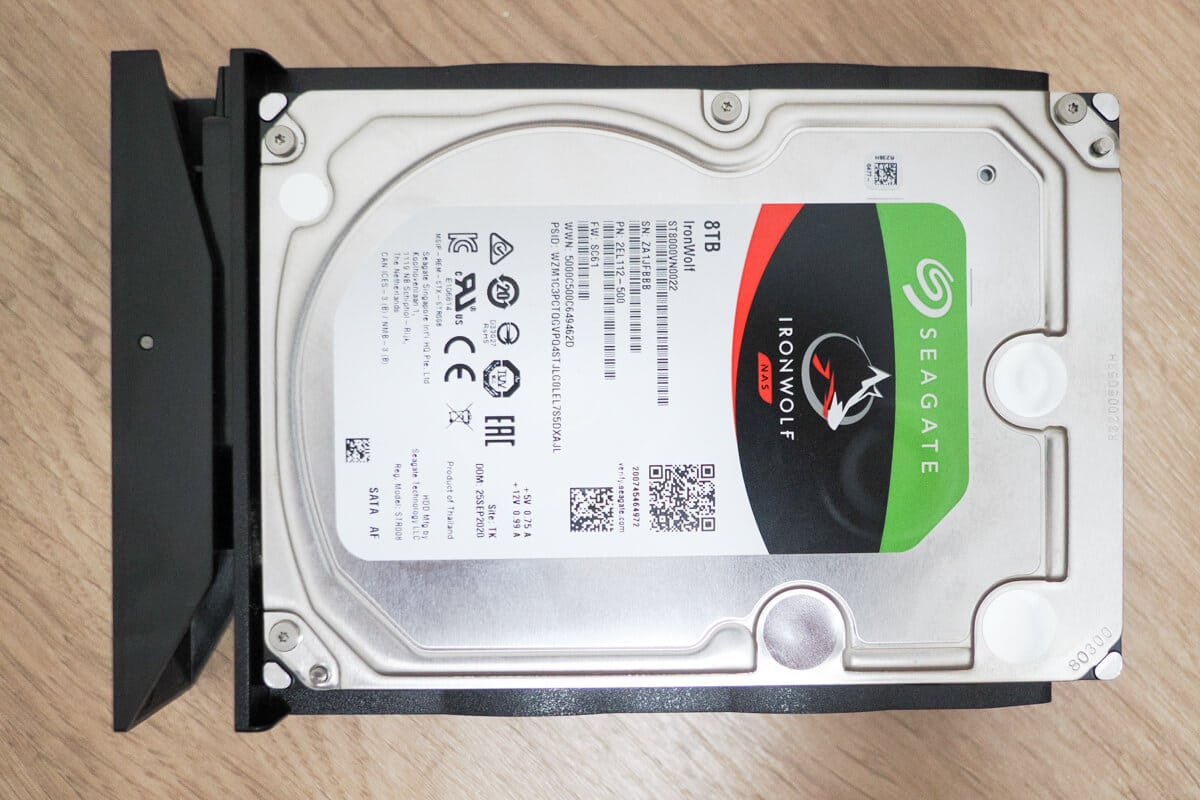
Hard drive mounting is easy. Terramaster uses the screwless trays that most manufacturers use. The days of losing or stripping the little screws are long over. Mounting and inserting the drives was painless and everything lined up perfectly.
Fan Upgrade for Nerds
This may be a me thing, but I'm paranoid about heat around hard drives. Whether it's an HDD or SSD, there is going to be a lot of heat generated. The environment and placement of the unit can also have an impact on how much cooling is needed.
It doesn't matter how much you spend on a consumer NAS enclosure; they're all equipped with low-end fans for cooling. Low-end fans don't move as much air as good quality fans. This leads to the fan having to run at higher speeds if you have “automatic” set in the power management of the NAS enclosure, which generally the default setting.
Lower end fans are also affected more by environmental things like dust and pollen. Once it starts building up around the bearings and on the fins the noise levels go up as the fan works harder to offset the resistance. Working harder leads to failure of the fan, and you may not notice it has happened until the heat has caused issues as bad as drive failure.
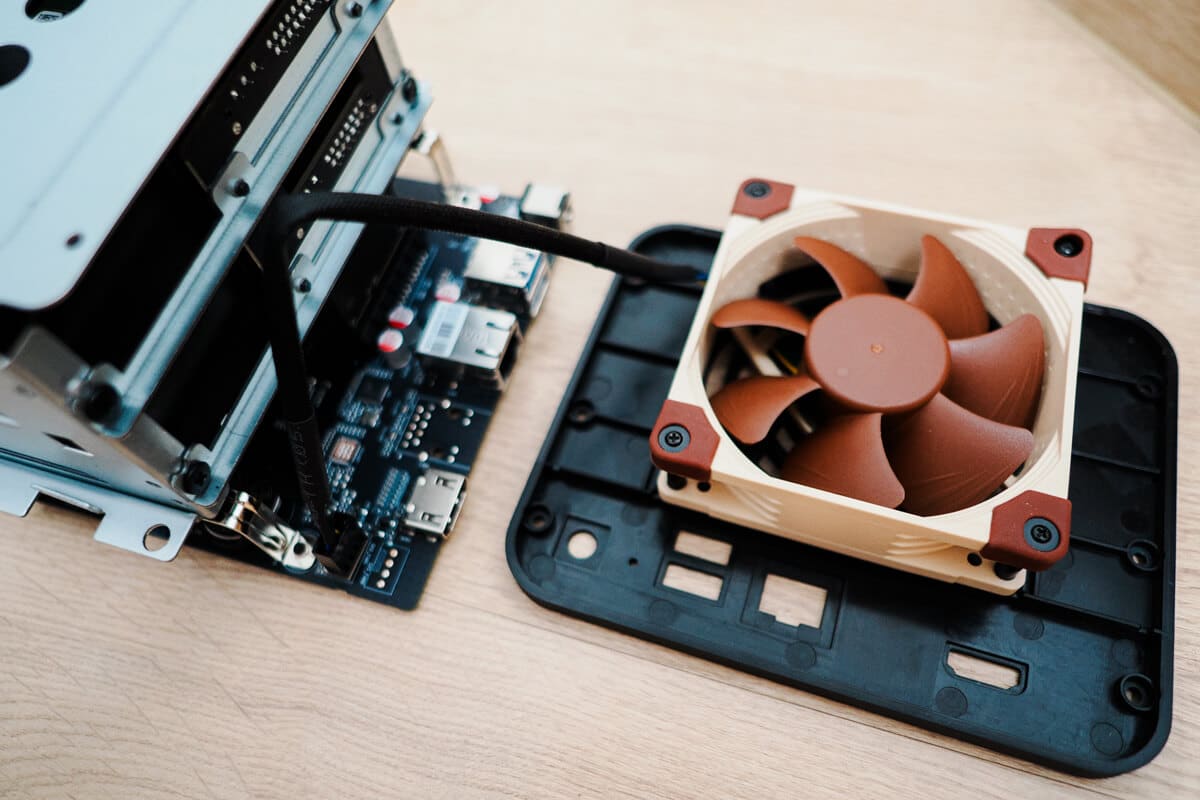
The first thing I do now when I get a new NAS or similar product is replace the fan with something higher end. Terramaster does use “standard” fan size and fan header. In this case, I went with a Noctua NF-A8, which is an 80mm fan that is 25mm thick and equipped with a 4-pin PWM connector. PWM means the fan can run at variable speeds depending on the cooling needed.
I just go with Noctua because they make every fan size imaginable and come with a 6-year warranty.
This upgrade will help with airflow in a big way and keep the fan speeds a lot lower than the stock fan.
The F2-425 has temparture sensors for the device, CPU and drives. The fan upgrade made a big difference even at idle. I didn't do any heavy stress testing, but if idle temperatures are this different, you'll see the same thing under load.
Sensor | Stock Fan | Noctua NF-A8 | CPU | 36c | 31c | Device | 35c | 30c | Drives | 48c | 39c |
Note: Terramaster did tell me replacing the fan does not void the warranty for the NAS enclosure, but the warranty on the original fan is voided.
Setup Process
Setup was a bit clunky for me, but it may be a different experience depending on operating systems and other software. I did the setup on Windows 11 and Ubuntu 26.04. The Linux setup went off without a hitch, but Windows is going to Windows sometimes.
You need the TNAS software for your desktop or laptop computer. Terramaster has you covered with native versions for Linux, Windows, MacOS and x86 MacOS. There are also mobile clients for Android and iOS.
I installed the TNAS software on Windows and connected the ethernet cable to a QNAP managed switch and powered it on. It took about 5 minutes before the TNAS software showed that the F2-425 was available. Windows showed it under network quickly, even if the TNAS software did not, and I found that odd.
Once the unit appeared in the software, it was time for the initilations and RAID selection. This didn't go smoothly either. The software could not download and install the TOS package and I had to go to the Terramaster site and download the package and send it to the unit manually. I'm not sure why this would fail, as it seems important that this part of the setup process goes smoothly.
You can download all of the required software from Terramaster here.

Once you have it manually uploaded it to the NAS it goes through a reboot procedure. This should take 5 minutes according to the software countdown. However, I let it run for more than 10 minutes waiting for the screen to update that it had rebooted. It didn't, so I ended up refreshing inside the TNAS software and then the drives were there and ready to be formatted.
You have the option of formatting your drives using BTRFS or Ext4. I have never used BTRFS, so I went with the tried-and-true Ext4 for easy Linux compatibility. You can configure the F2-425 for RAID 0, 1, JBOD, Single, TRAID, and TRAID+. Since it's only a 2-drive unit, there is no option for RAID 5 or RAID 6.
Since I was going for speed, I went with RAID 0. This setup does not have any sort of parity if a drive fails. Your files are gone. If you are using your 2-bay NAS for protected backup, going RAID 1 would be the best way to go.
Once the initialization and formatting we done, everything went very smoothly from that point on.
Applications Available
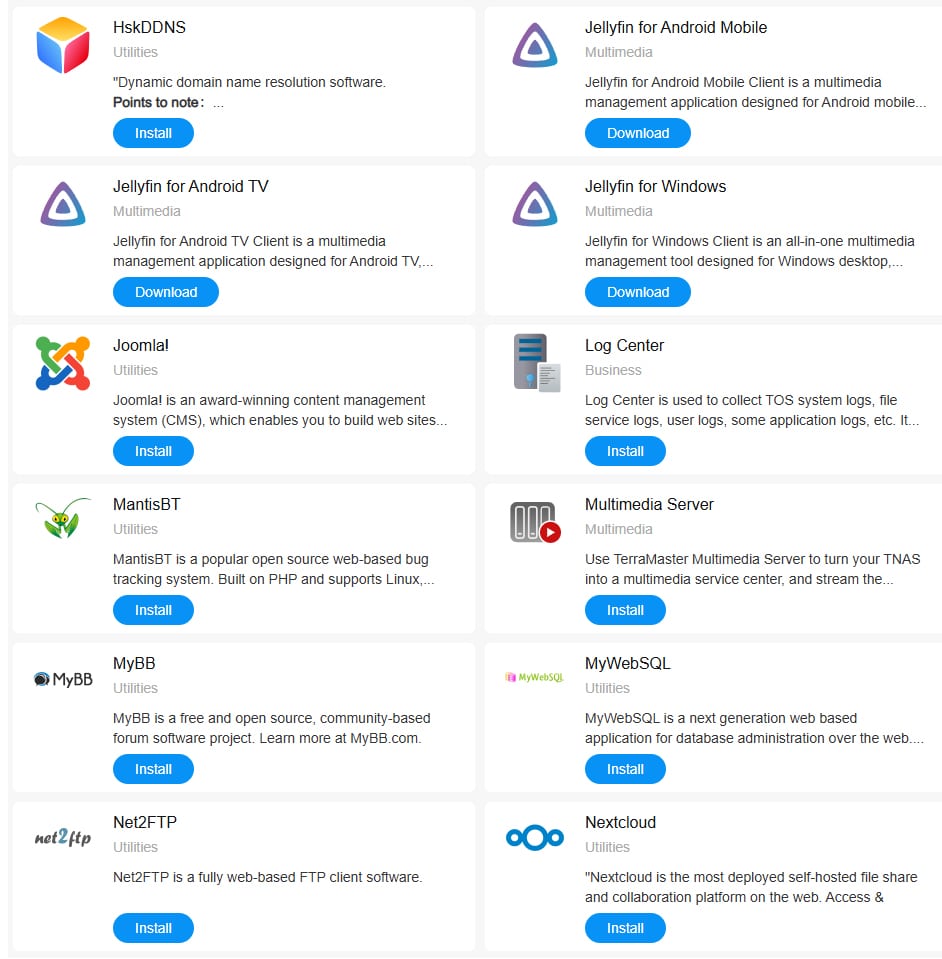
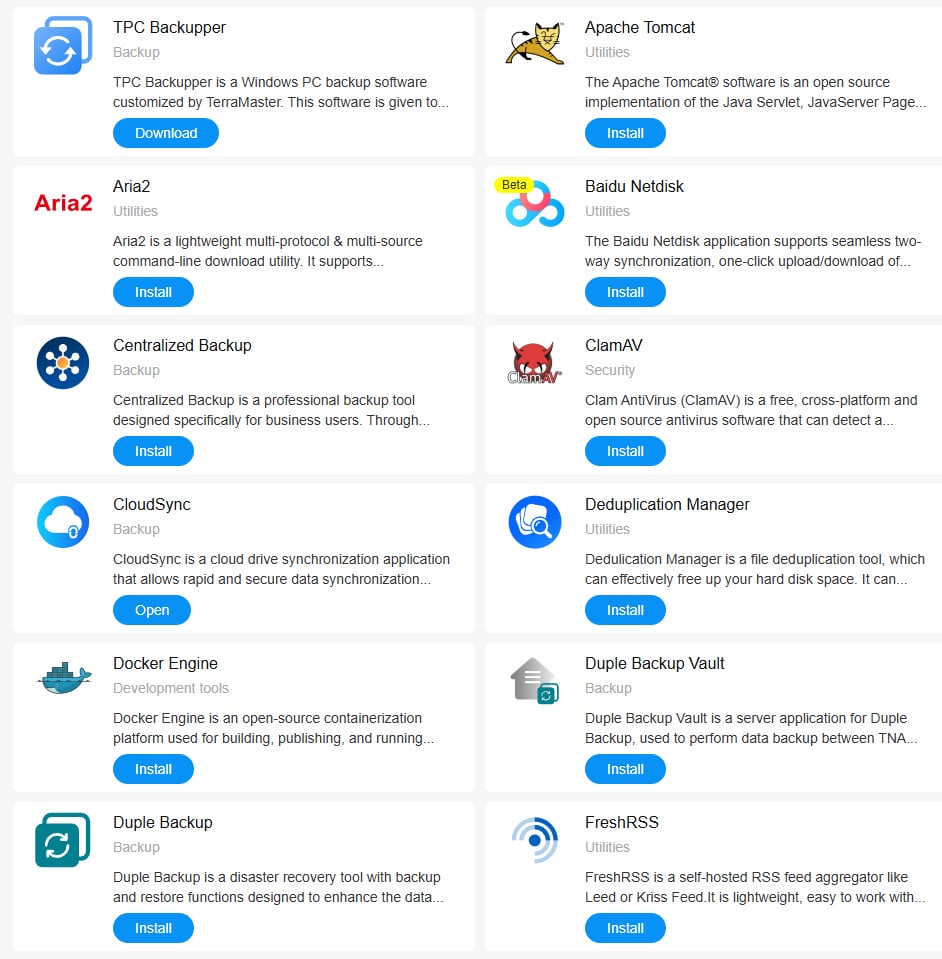
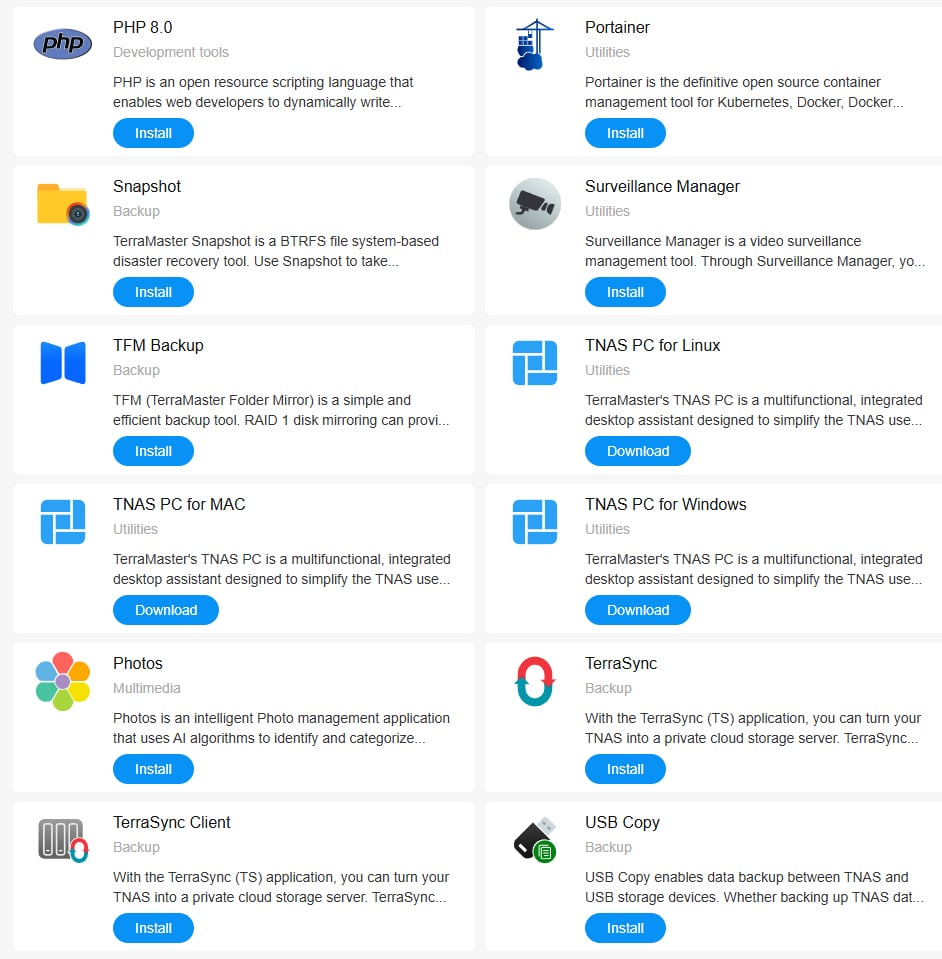
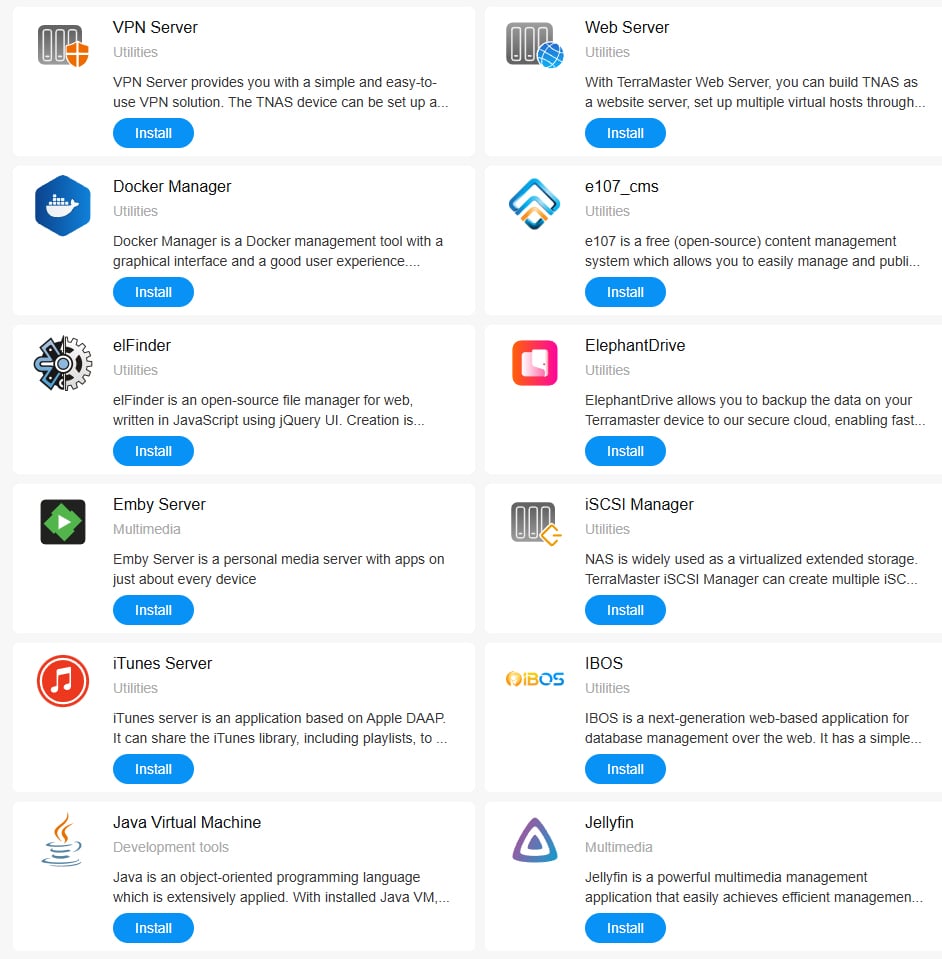
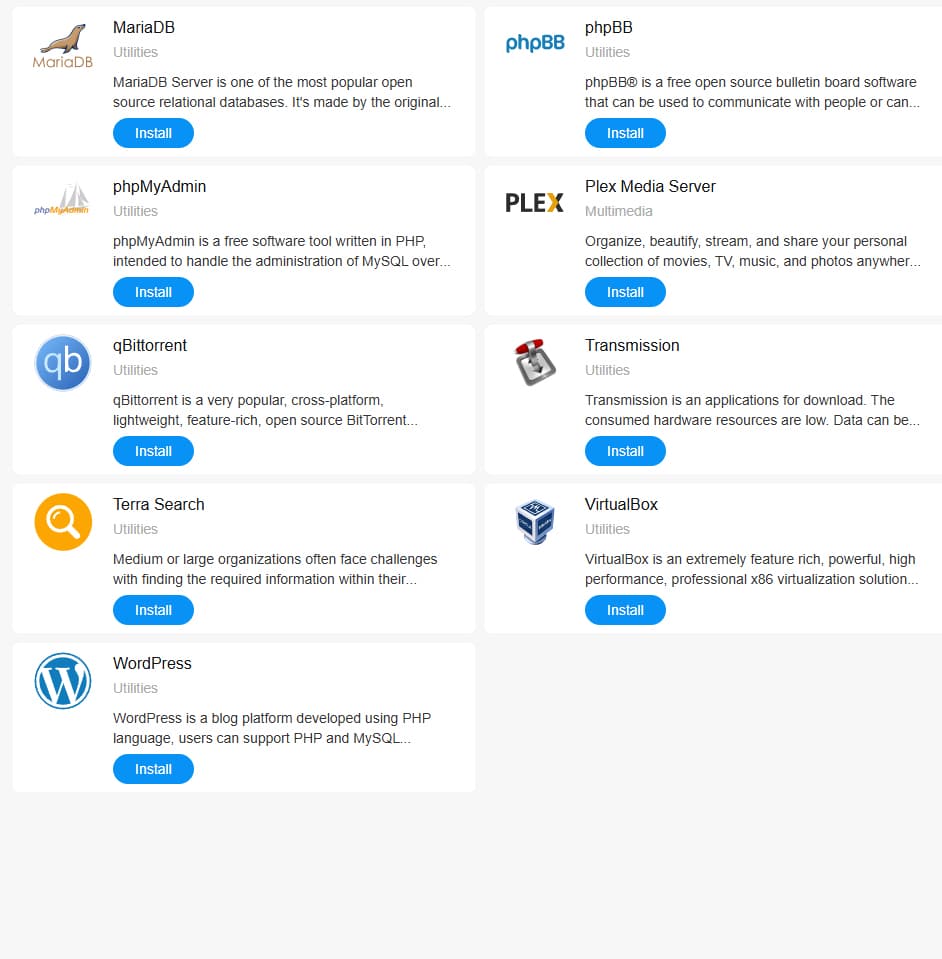
There are more than enough native applications available for any type of user. Whether you're new to owning a NAS and just want data protection, or a more advanced user that has a specific need, it's all here.
This unit would be a great test bed to learn all sorts of platforms if you want to self-host some things. A private VPN, a WordPress site, media server, data syncing, and a lot more. You won't get bored setting new things up.
I set up an Emby Server, a WordPress site with php and MariaDB inside a Docker container, surveillance manager and a VPN server. All of them went smoothly, but some do a require prerequisite knowledge, but I don't think you're going to run into issues with anything you try to do.
Cloud Features
The number 1 reason most people buy a NAS enclosure is to protect their data. While a NAS will do a great job of protecting your data locally, it doesn't help if something happens within your abode. The answer to that is backing up the NAS to a cloud service, and the F2-425 supports all the most popular services out of the box.
I host my own cloud backup using an S3 compatible Object Storage Box and that was easy to set up. Most people don't do it that way, but you do have plenty of cloud backup options built in.
I had Google Drive and OneDrive backups set up as well as my own solution and all the schedules were followed without issue. This may have been the easiest out of the box cloud backup setup procedure that I have ever used. QNAP, UGREEN and Synology obviously have this capability, but they aren't always the most intuitive to set up.
Mobile Application
I didn't spend much time in the mobile application, but what I did see looked good. Everything was well layed out and it was easy to access your NAS remotely. You may need to do some network set up to access the enclosure from outside of your home network.
What else to say?
I'm not the world's most experienced reviewer, but Terramaster asked, and I think it's important to always remind people to back up their data. Too many people learn this lesson the hard way. I am one of those people. Now I'm over the top about backing up!
The Terrarmaster F2-425 is a great unit for anyone that doesn't want to spend a ton of money on an enclosure. For the first time NAS customer, I'd highly recommend checking out Terramaster's solutions.
With the price of storage rising daily, a 2-bay solution is the most cost-effective way to go. A 4-bay unit gives you more options for data protection, but if you're doing cloud backup as well, I think you're very well protected by going the 2-bay route.
Terramaster NAS enclosures are on sale until March 31, 2026. You can save $60 on the F2-425, bringing it down to a very affordable $239 (Reg $299). Unfortunately finding hard drives on sale may be a chore.