Improving 5D MK lll skin tone

Status
Not open for further replies.
Dec 6, 2011
129
0
5,996
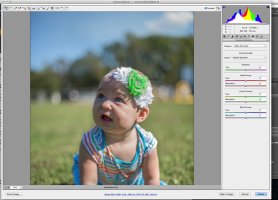
I love my 5D MK lll bodies but I often struggle with getting high quality skin tone even though I use a custom white balance. Too often I am challenged to reduce excess magenta, red and pinkish tones from skin color and also deal with too much yellow.

I'd be much happier with more brown tones in caucasian skin. I see those wonderful tones from large format digital cameras. I have a hunch the 5D can pull it off, I just need to learn how, either with camera set up or post production Photoshop techniques.

Tell me it's possible

Thanks

Rex
 
Get an X-Rite Colour Checker Passport and make some custom camera profiles, you will be shocked at how out of align some camera profiles and response curves are.

I don't use the X-Rite profile program either, I use Adobe's DNG Profile Editor, it is free and I think has much more control and visual aids in adjustments.
 
Upvote 0
What situations are you shooting in? Indoors with mixed or consistent lighting? Outdoors?

Might you be over-complicating things with a custom WB? Shooting in RAW with Auto WB, if the lighting is consistent, not, say, tungsten mixed with window light, or flash fighting with different colored walls and overhead lights, my 5DIII seems to be just right most of the time when I view in LR5 or Canon's DPP.

Sometimes in fluorescent lighting, though, African-American skin can get a little too mahogany (reddish brown) if my exposure is a little dark, and a little yellow if too bright. But Oriental and Caucasian, skin tones seem accurate if the subject is healthy.

I do start with a neutral gray card for location portraits and indoor events--but the Color Checker looks even more helpful.
 
Upvote 0
I appreciate the help from my friends here, thanks a lot.
I purchased the Passport and look forward to seeing how it can help skin color quality and accuracy. Creating a new camera profile is something that will be great to learn about.

I'm still surprised by the color cast, heavy in reds and magenta, and some excess yellow I get using the 5D with a carefully created custom white balance in jpegs.

Are the RAW shooters here getting great skin color just using the PS yellow-blue and magenta-green sliders, and white point, or are there other controls I should be using ? I struggle with the two sliders in the RAW converter.

This is a great message board, thanks for helping out.

Rex
 
Upvote 0
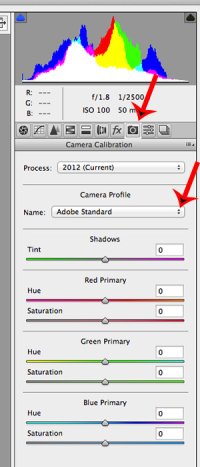
No don't use the two white balance sliders. In Adobe Camera Raw, ACR, you need to go to the Camera Calibration tab, click on that and you get the panel below. I have arrowed the camera calibration tab, and the sub tab where any new profiles will reside, having said that if you click on that second tab you will find Adobes version of Canons Picture Styles. Try them, some are much less magenta/red.
 

Attachments

  • 11.jpg
    11.jpg
    98.5 KB · Views: 2,138
  • 12.jpg
    12.jpg
    72.6 KB · Views: 2,161
Upvote 0
Really nice of you to share that color control option. Thanks a lot !

For years while working as a newspaper photographer I would do a quick color correction of jpeg files, crop, size and send.
Never had any PS training. Now that I'm freelancing and doing more critical work I need to up my quality control.

I'm working to master or at least improve control of skin tone.

Thanks a lot for your help.

Rex
 
Upvote 0
There are lots of tricks for improving skin colors. I tend to use a combination of the following three tools in Lightroom, when working with RAW format (or even hi-res jpegs):

1. white balance
2. split toning
3. hue/saturation/luminance

I tend to go back and forth between these controls, because changing one usually requires changes to the other two. They all work in concert. While it's true that using color cards can help, a color card doesn't guarantee that you had good lighting. Ultimately, you are using these controls to create what would have been the optimal lighting.
 
Upvote 0
I've followed the generous advice here and purchased the Xrite Color Checker Passport. I'm using it with PS CS6, not Lightroom, so I converted to DNG, created a profile, loaded and activated the profile. I see the helpful change in color with the custom profile, but what doesn't make sense to me is that when I click the white balance eye dropper on the middle gray patch the color changes. Wouldn't it stay the same ? How can I have two different looks that are accurate ?

Thanks again

Rex
 
Upvote 0
rlarsen said:
I've followed the generous advice here and purchased the Xrite Color Checker Passport. I'm using it with PS CS6, not Lightroom, so I converted to DNG, created a profile, loaded and activated the profile. I see the helpful change in color with the custom profile, but what doesn't make sense to me is that when I click the white balance eye dropper on the middle gray patch the color changes. Wouldn't it stay the same ? How can I have two different looks that are accurate ?

Thanks again

Rex

Rex,

Welcome to the rabbit hole that is colour management!

The profile that is created, by default, is a single illuminant profile, that is, it calculates all the colour values based on a pre determined D number/white balance/ºK, I can't put my hand on the value that X-Rite use for a single illuminant profile but lets say it is D65, or 6,500ºK. When you open your image, by default PS will use the As Shot WB number. If that As Shot ºK is different from the profiles 6,500ºK then your center white square will have different values. When you eye drop the center white square you will shift the profiled numbers in relation to that WB to profile difference.

The center white square will only be "correct" if the shot WB and the profile WB match. There is a way around this, you can profile two differently illuminated images and create a single, variable, profile, this will extrapolate the WB selected so your center square stays neutral across, in theory, any WB shot at. These profiles are called Dual-Illuminant profiles.

I find the single illuminant profiles work fine for most uses, the colour response is better (you lose that magenta caste) but you still have the artistic freedom of WB control for ambiance.

Hope this helps.
 
Upvote 0
Thanks PBD, I was hoping you'd add your two cents worth. Just when I think I understand color management you raise the bar to the next level.
I'm going to read your note a few times and let it sink in.

When I look at a couple Passport training videos I'm puzzled by the suggestion to set a white balance (with the color checker), then create the profile and then to assign the profile to the image or batch. It strikes me as redundant.

Then I see the "As Shot" option in PS and think, wait, I want the custom profile, not "As Shot."

I'm trying to let this stuff sink in and not make it harder than it has to be.

I'm excited about the control and consistency the Passport can provide once I understand the little details you are nice enough to explain.

I have the DNG converter and want to check out the DNG editor you mentioned.

Thanks a lot !

Rex
www.rexlarsen.com
 
Upvote 0
rlarsen said:
I love my 5D MK lll bodies but I often struggle with getting high quality skin tone even though I use a custom white balance. Too often I am challenged to reduce excess magenta, red and pinkish tones from skin color and also deal with too much yellow.

I know the is an old post, but I hope this reply helps others with the same problem.

The 5D Mark II has issues with skin tones and I believe the 5D Mark III might have the same problem.

The Colour Checker Passport is a rip off, a complete waste of money. I have one, it's crap, a waste of £80.

For years I have had this problem, I have 2 x 5D2's and a 40D. The 40D gives better skin tones than the 5D2.

I went through modifiers thinking they were giving casts, displays, I suspected everything - right down to my studio walls.

I will say it again to clarify The 5D Mark II DOES have a problem with skin tones. They can look red, blotchy, over saturated and just horrible.
 
Upvote 0
JennyGW said:
rlarsen said:
I love my 5D MK lll bodies but I often struggle with getting high quality skin tone even though I use a custom white balance. Too often I am challenged to reduce excess magenta, red and pinkish tones from skin color and also deal with too much yellow.

I know the is an old post, but I hope this reply helps others with the same problem.

The 5D Mark II has issues with skin tones and I believe the 5D Mark III might have the same problem.

The Colour Checker Passport is a rip off, a complete waste of money. I have one, it's crap, a waste of £80.

For years I have had this problem, I have 2 x 5D2's and a 40D. The 40D gives better skin tones than the 5D2.

I went through modifiers thinking they were giving casts, displays, I suspected everything - right down to my studio walls.

I will say it again to clarify The 5D Mark II DOES have a problem with skin tones. They can look red, blotchy, over saturated and just horrible.

Can I ask what you don't like about the ColorChecker?

Since I bought it I haven't processed a single shot without a CC profile, I think it's superb. And the absolutely quickest way to get accurate color always. I still use CBL for white balance, both wonderful tools.
 
Upvote 0
First, it's really bad form on any forum to bump a thread that's been dead for four years.

Second, Canon's DIGIC 2 and 3 cameras were notorious for having technically inaccurate but commonly more pleasing skin tones. That's your 40D. The 5D2 uses a DIGIC 4 and the 5D3 uses a DIGIC 5+; these give more accurate skin tones, but a few people find this accuracy less pleasant. (Same reason some people don't like lenses which are 'too' sharp and why many are still trying to emulate a 'film' look; it's also similar to how some people swear vinyl sounds better than digital music, even though it is, factually, more limited.)
Of course the lower resolution of the 40D and the softer look of APS-C means you're also seeing a more 'averaged' image, which again can be pleasing for portraits though it is, like the colour, technically less accurate.

So your answer is that what you like is inaccuracy. You like inaccurate reproduction. Which further explains why you aren't happy with the ColorChecker (or any other profiling system; the ColorChecker is simply the most common brand). It's not "crap", it's doing exactly what it is intended to do. It just-so-happens that what you want isn't what it's intended for, and you have misunderstood that.

You're complaining about tools which are not meant to do what you're trying to do not being able to do what you're trying to do.

If you want general image quality like the 5D2 but with the colours of the 40D, try a 1Ds2 or 1Ds3. They use the older processors which under-saturate reds. (The mk2 moreso, but you can't get new batteries for that and it only tethers via FireWire; the mk3 can use the same batteries as the 1D4 and 1DX and tethers through USB.)

Alternatively, you could bother to learn what a color profiler actually does and you could use the ColorChecker to create a color profile which will make the 5D2 (or any other camera) replicate the colours of the 40D. And if even that is beyond you, you can just use a colour reference (which, again, the ColorChecker works fine for) and use H/S/L sliders and tone curves in your raw processor to shift the colour to whatever it is you want, and save that as a preset to be automatically applied on import.
Lastly I'd remind you to make sure you're evaluating colour on a full gamut monitor which is calibrated regularly. You can't judge colour well if your screen is running too warm and dim (older screens) or too cool and bright (newer screens).


In short, all you've done is brought back a long-dead thread in order to complain about your own misunderstandings and user error.
 
Upvote 0
Could be a film title Return of Living Thread.
I have a colour checker and it's a complete waste of money because I don't bother to use it.
Because I don't use it I can't complain if something is off.
Its expensive for a little card but powerful if used properly.
Given that I don't use it my cameras 5D 3 5D4 5DSR and 7D II are really good at colour. Very consistent and pleasing
It's something you can't see in a cameras spec. I don't know what magic formula Canon use but it works.
 
Upvote 0
chauncey said:
Why worry about skin tones...when ya shoot in RAW, you adjust skin tones in your PP software using the methods previously mentioned.
Aah...you do shoot in RAW...right.
Well I for one do not know how to produce a realistic skin tone from a RAW file. Whenever I have tried to adjust the colours myself it has ended up looking as if the skin has been coated in beetroot juice.
That is the benefit of the xrite colour checker passport - I just choose the profile that the software created and it changes the colours automatically without me having to make any adjustments at all.
 
Upvote 0
Status
Not open for further replies.